
Follow the instructions below to enroll a student in elementary (grades K–5) instruction with Virtual Virginia.
- Using your counselor/coordinator ID and password, log in to the Genius SIS. If you can’t remember your password, click the “recover password” link.
- Go to the student’s profile page.
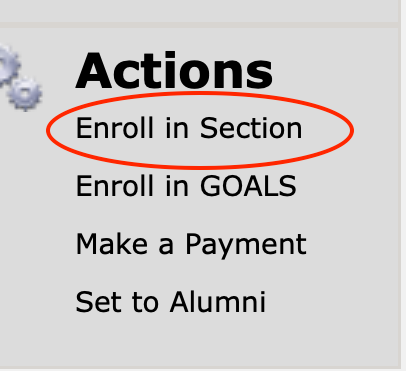
- Under Actions, click Enroll in Section.
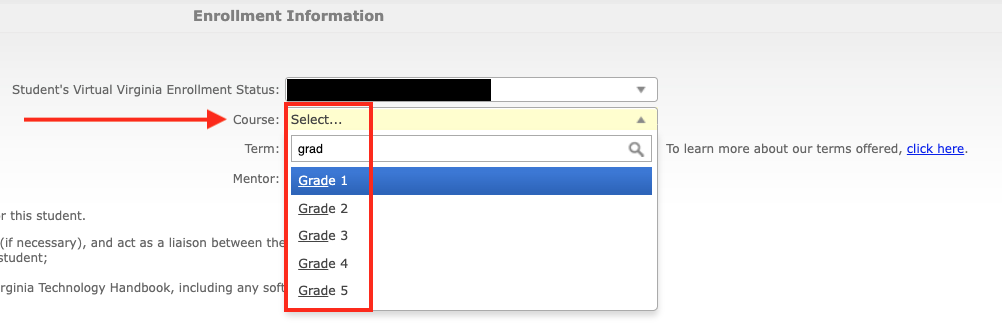
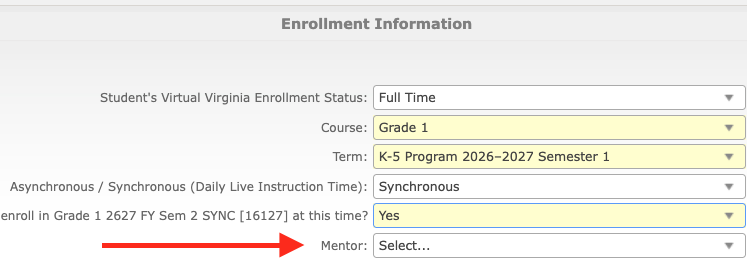
- In the Enrollment Status dropdown menu, select Full Time. Click on the Course dropdown menu, type “Grade” to populate grades 1-5. For Kindergarten, type Kindergarten. Select the grade level desired.
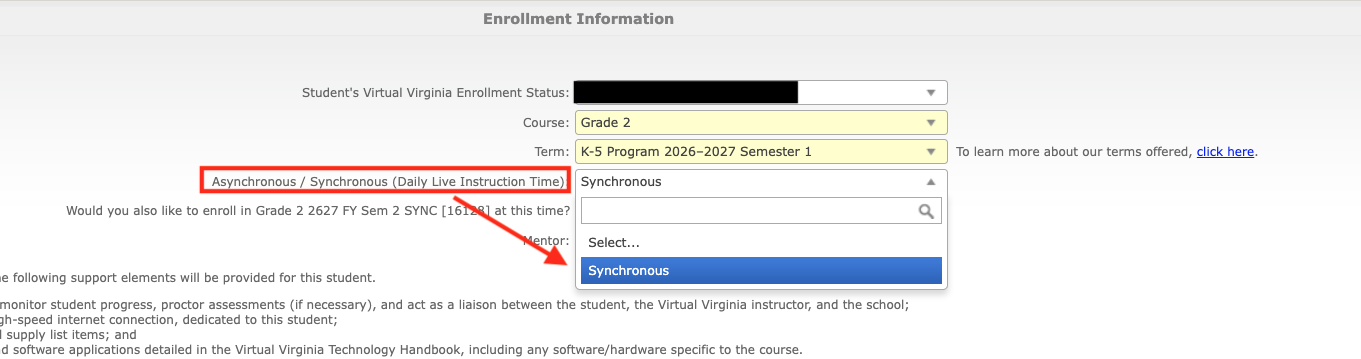
- The Term dropdown will auto-populate to allow you to choose between semester 1 or semester 2 enrollment. Select Synchronous for the Asynchronous/Synchronous drop-down. This is the only option for elementary grades.
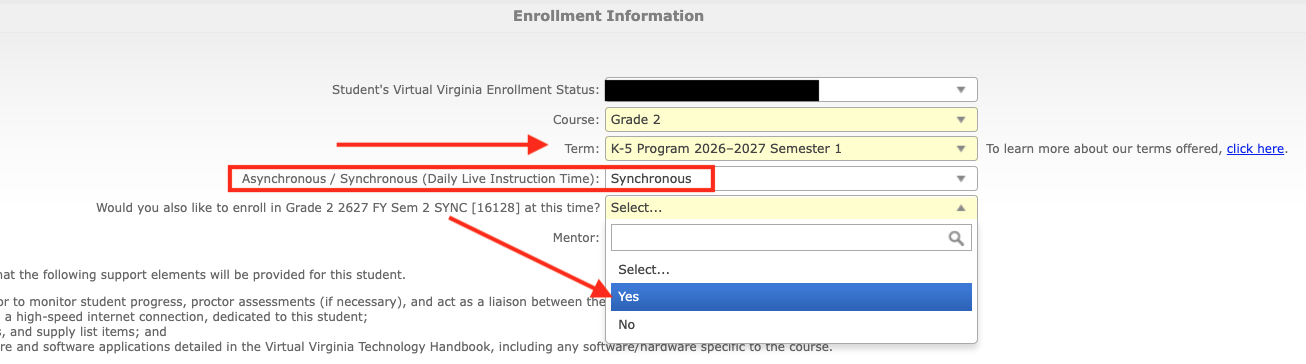
- If you selected Semester 1, an option will appear to automatically also enroll the student in Semester 2. Select Yes or No.
- Select the Mentor.
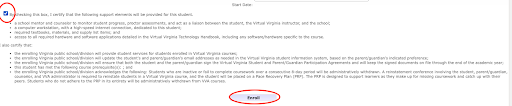
- Review the Enrollment Terms. Click the box to agree to the terms. Click Enroll. You will automatically be transferred to the Payment Queue.
- If you do not see the enrollments in the Payment Queue, click Get Data. Select the enrollments that need to be paid and click the Select Payment Method button.

- Select the Payment Method desired. If you select To Be Paid by Student in the dropdown menu, the family will be responsible for making the enrollment fee payment and they will receive an email notification.
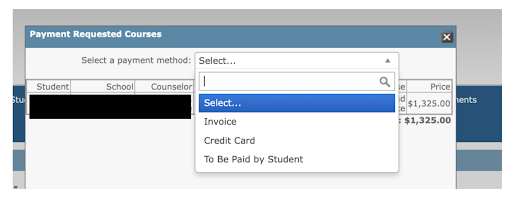
- Click the Submit button. When you click the Submit button, this billing item will be available for the family to pay.